Connecting WooCommerce to Labl
You can connect your WooCommerce store to LABL to automatically sync orders, manage returns and exchanges, and enable shipping protection. This integration is compatible with WooCommerce versions 5.x through 8.x and WordPress 5.9+.
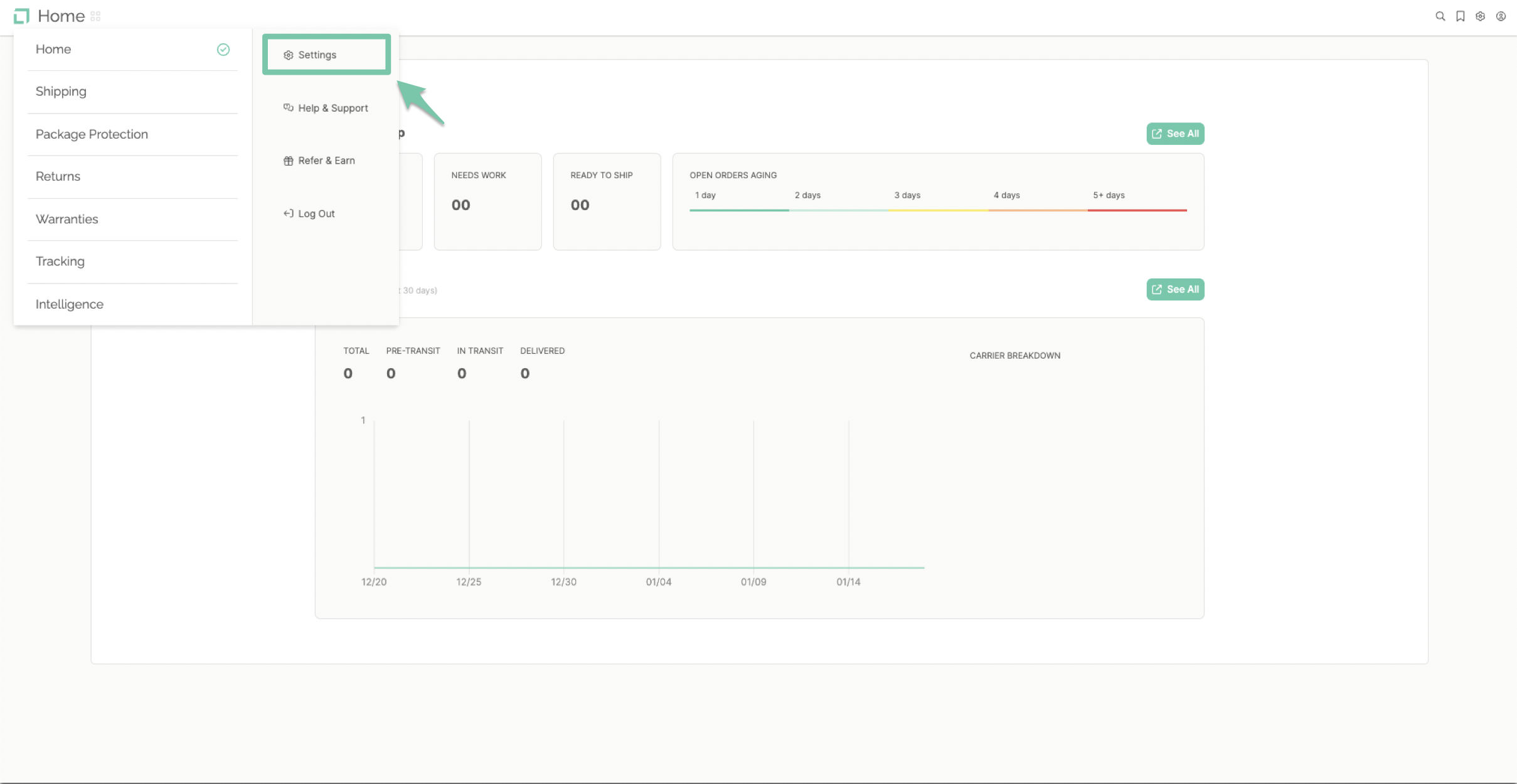
From the main dashboard, select "Settings" found in the navigation menu on the left-hand side.
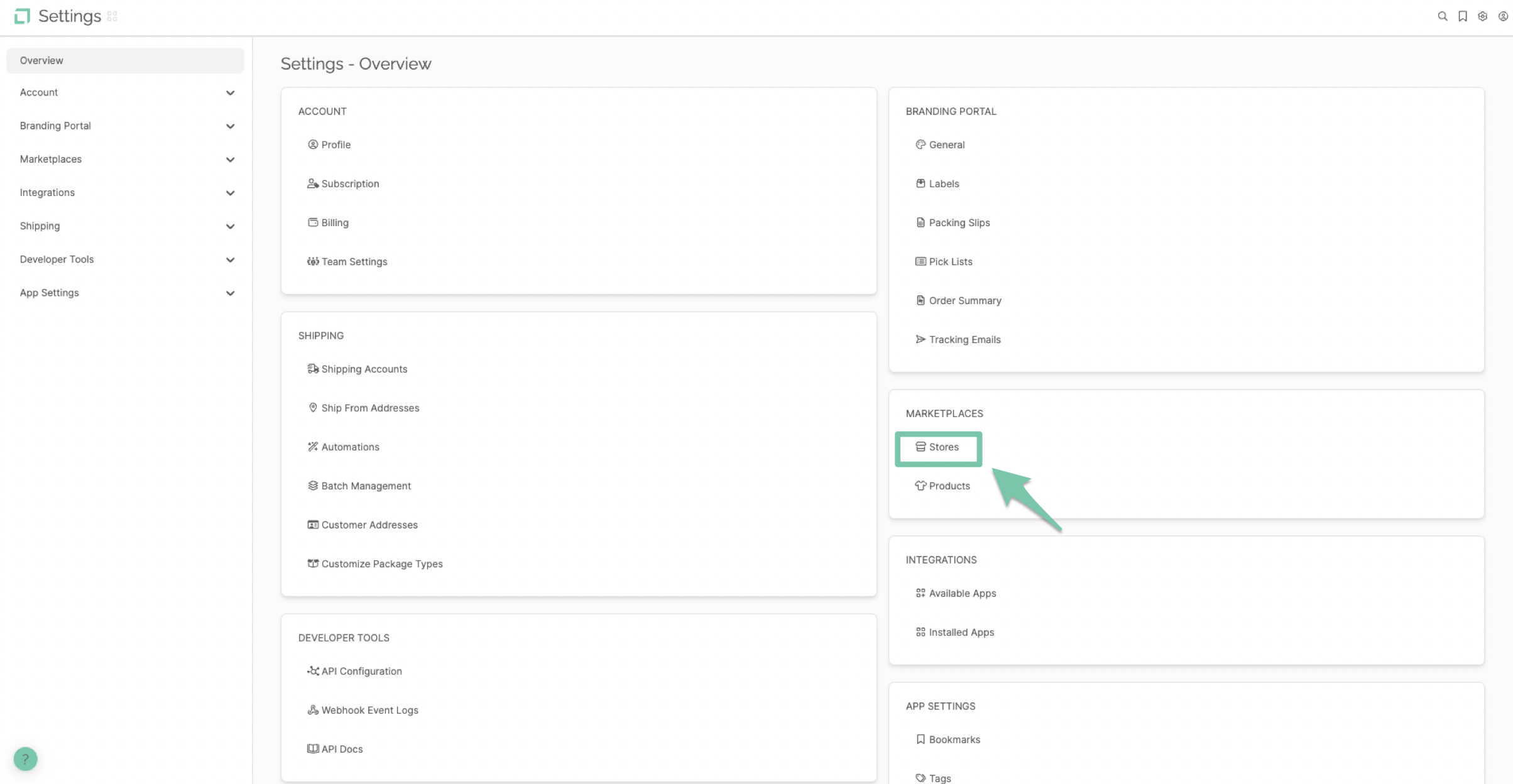
Select "Stores" found under the Marketplace section of the dashboard.
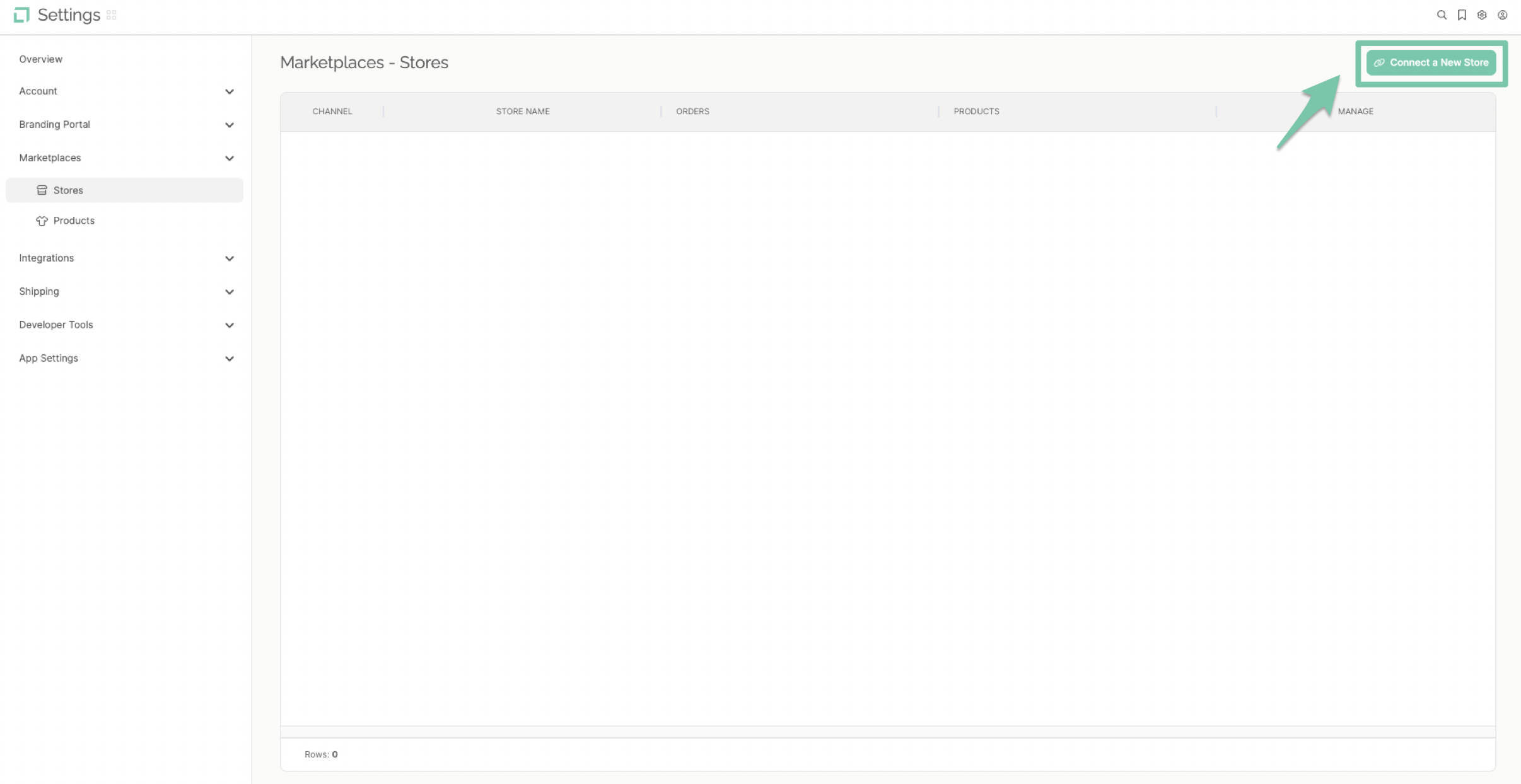
Click "Connect A New Store" to pull up your integrations list, or select the Shopify icon under featured channels.
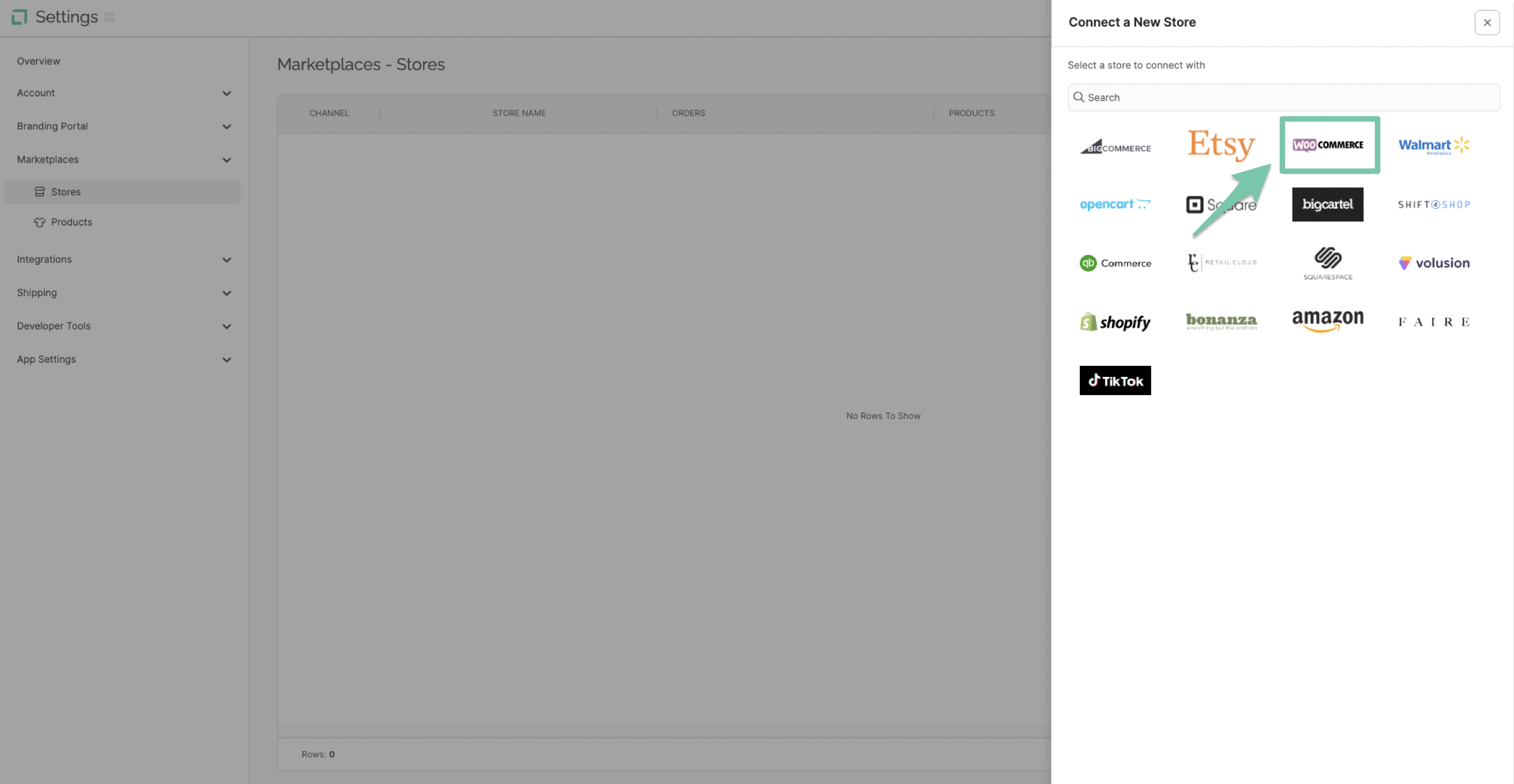
Click the WooCommerce logo on the store's channel list.
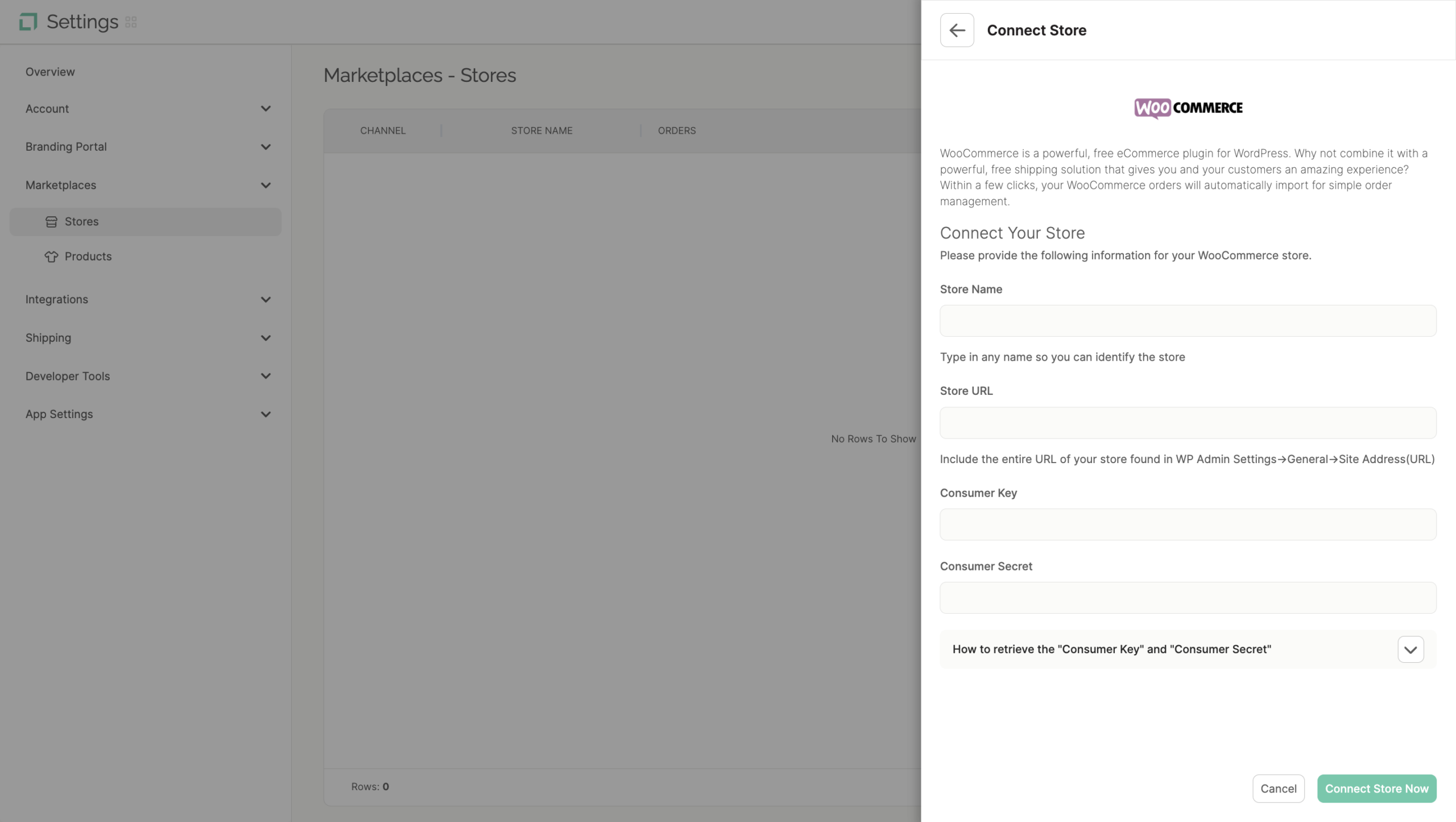
Fill in the required fields which include: Store Name, Store URL, Consumer Key, and Consumer Secret. Click "Connect Store Now" to complete the integration.
Generate API Keys in WooCommerce
Log into your WordPress Admin Dashboard.
Go to WooCommerce → Settings.
Select the Advanced tab.
Click REST API in the submenu.
Click Add Key (or Create an API Key).
Fill out the form
Description: LABL Integration
User: Select an Admin user
Permissions: Choose Read/Write
Click Generate API Key.
Copy your Consumer Key and Consumer Secret — you'll need them in LABL.
Note: You must be running WooCommerce 2.6+ to complete this integration.